
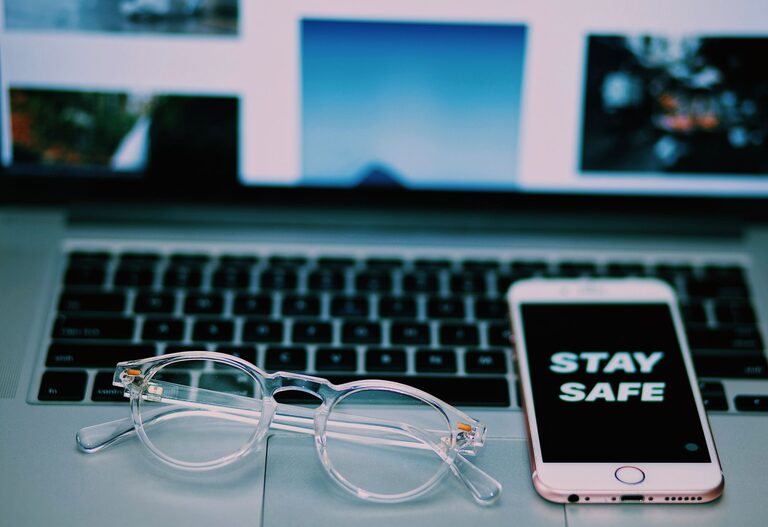
Keeping your phone and keyboard clean is essential not only for hygiene but also for maintaining the longevity of your devices. With frequent handling, these gadgets accumulate dust, dirt, oils, and sometimes even germs. However, cleaning them improperly can lead to damage. This guide will walk you through safe and effective methods to clean your phone and keyboard without risking harm.
Why Clean Your Phone and Keyboard?
Phones and keyboards are some of the most used items in daily life. Our hands transfer oils, food particles, and bacteria to these devices, which can affect functionality and spread germs. Regular cleaning helps prevent buildup, improves device performance, and creates a healthier environment.
—
What You’ll Need
Before starting, gather the following supplies:
– Microfiber cloths (soft and lint-free)
– Cotton swabs
– Isopropyl alcohol (70% or less)
– Mild dish soap
– Distilled water
– Compressed air canister (optional)
– Small brush (like a clean paintbrush or soft toothbrush)
Note: Avoid using bleach, window cleaners, or abrasive materials as they can damage surfaces.
—
How to Clean Your Phone Safely
Step 1: Power Off Your Phone
Always turn your phone off and unplug any cables before cleaning. This reduces the risk of damage and avoids accidental inputs.
Step 2: Remove Phone Case and Accessories
Take off any phone case, screen protector, or accessories. Clean these separately using warm water and mild soap.
Step 3: Wipe the Surface
– Dampen a microfiber cloth with a mixture of equal parts distilled water and isopropyl alcohol.
– Gently wipe the phone’s screen, back, and sides.
– Avoid using too much liquid—never spray directly onto the phone.
– Use a dry corner of the cloth to remove excess moisture.
Step 4: Clean the Ports and Speaker Grills
– Use a dry cotton swab or a soft brush to gently clean ports and speaker grills.
– If you have compressed air, use short bursts to dislodge dust carefully.
– Avoid inserting anything sharp or metal, which could cause damage.
Step 5: Dry Thoroughly
Let your phone air dry completely before turning it back on or reconnecting accessories.
—
How to Clean Your Keyboard Safely
Step 1: Turn Off and Disconnect
If you’re using a wired keyboard, unplug it. For wireless keyboards, turn the power off.
Step 2: Remove Loose Debris
– Turn the keyboard upside down and gently shake or tap it to release crumbs and dust.
– Use compressed air to blow out stubborn particles between keys.
Step 3: Wipe the Keys
– Lightly dampen a microfiber cloth or cotton swab with a mild soap and water solution or isopropyl alcohol diluted to 70% or less.
– Carefully wipe the key surfaces and keyboard frame.
– Avoid excessive moisture to prevent liquid from seeping under the keys.
Step 4: Deep Clean (Optional)
– If keys are removable, follow manufacturer instructions to carefully remove and clean them individually.
– Soak removed keys in warm soapy water, rinse, dry thoroughly, and place them back.
– Never immerse the keyboard itself in water.
Step 5: Dry and Reassemble
Ensure the keyboard is completely dry before reconnecting or turning it on.
—
Tips to Keep Devices Cleaner Longer
– Wash your hands before using devices.
– Avoid eating near your phone or keyboard.
– Clean devices regularly—once a week is ideal.
– Use keyboard covers or phone cases that are easy to clean.
– Store devices away from dust and direct sunlight when not in use.
—
What to Avoid When Cleaning Your Devices
– Using bleach, ammonia, or harsh cleaners.
– Spraying liquids directly onto the device.
– Excessive moisture or soaking.
– Sharp objects to clean ports or between keys.
– Abrasive materials that can scratch surfaces.
—
Conclusion
Cleaning your phone and keyboard safely is simple with the right tools and methods. Regular maintenance not only keeps your devices looking good but also ensures they function well and remain hygienic. By following these steps, you can protect your investment and promote a cleaner workspace.
—
Remember to always check your device manufacturer’s cleaning recommendations as well, since some products may have specific guidelines. Happy cleaning!